Monday, 30 September 2013

உங்களுடைய கம்ப்யூட்டரில் அட்மினிஸ்ட்ரேட்டர் அக்கவுண்ட் எதற்கு?

உங்களுடைய கம்ப்யூட்டரில் அட்மினிஸ்ட்ரேட்டர் அக்கவுண்ட் எதற்கு?

Posted on July 18, 2013 by ARIHARAN
உங்களுடைய கம்ப்யூட்டரில் நீங்கள் விரும்பும் மாற்றங்களைமேற்கொள்ள முடியுமா? என் கம்ப்யூட்டரி ல் ஏன் முடியாது? என்று திருப்பி நீங்கள் கேட்டால், விண்டோஸ் சிஸ்டத்தினை நீங்கள் சரியாகப் புரிந்து கொள்ளவில்லை என்று பொருள். விண்டோஸ் ஆப்பரேட்டி ங் சிஸ்டம் இரண்டு வகை அக்கவுண்ட் கொ ண்டுள்ள வர்களை அனுமதிக்கிறது. அவை standard and administrator. அட்மினிஸ்ட் ரேட்டர் அக்கவுண்ட் வைத்திருப்பவரே சிஸ் டம் பைல்களி ல் மாற்றங்களை ஏற்படுத்த முடியும். அவர் ஏற்படுத்தும் மாற்றங்கள், அந்தக் கம்ப்யூட்டரில் வேறு வகை அக்கவுண்ட் வைத்துப் பயன்படுத்துபவர்களின் அமை ப்பை பாதிக்கலாம். இந்த இருவகை அக்கவுண்ட்கள், உங்கள் கம்ப்யூட்டரை ப் பாதுகாக்கத்தான் ஏற்படுத்தப்பட்டுள் ளது. இதனால் தான், மற்றவர்கள், உங் கள் கம்ப்யூட்டரில் எந்தவித மாற்றத் தினையும் ஏற்படுத்த முடியாது. முக்கி யமான பைல்களை அழிக்க முடியாது. இஷ்டத்திற்கு ஆண்ட்டி வைரஸ் புரோ கிராம்களை இன்ஸ்டால் செய்திட முடி யாது.
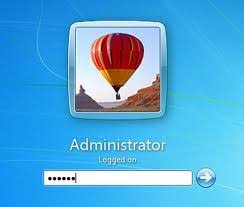
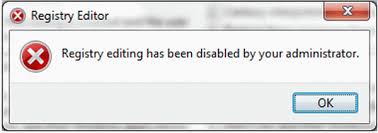
சிஸ்டம் அமைப்புகளை மாற்றக் கூடிய சில புரோகிராம்களை, எடு த்துக் காட்டாக ரெஜிஸ்ட்ரி எடிட்டர் அல்லது மைக்ரோசாப்ட் மேனேஜ்மெண்ட் கன்சோல், நீங்கள் இயக்க முயற்சிக் கையில், முதலில் திரை யில் தோன்றும் கட்டத்தி ல், இந்த புரோகிராம் உங் கள் கம்ப்யூட்டரில் மாற்ற ங்கள் ஏற்படுத்துவதனை அனுமதிக்கிறீர்க ளா? என்ற கேள்வி கேட் கப்படும். நீங்கள் அட்மினிஸ்ட்ரேட்டர் அக்கவுண்ட்டில், அந்தக் கம் ப்யூட்டரில் நுழையவில்லை என்றால், அந்த புரோகிராமினைத் திற க்கவும், மாற்றங்களை ஏற்படுத்தவும் உங்களுக்கு அனுமதி கிடை க்காது. பைல்களை அழிக்க முற்படு கையிலும், புரோகிராம்களைஇன்ஸ்டால் செய்திட முயற்சிக்கை யிலும் இதேபோல அனுமதி மறுக் கப்படும்.
அனுமதி மறுக்கப்படும் இந்த புரோ கிராம்களை இயக்குவதற்கும், புதிய சாப்ட்வேர் புரோகிராம்களை இன்ஸ்டால் செய்வதற்கும், உங் களைப் பற்றிய குறிப்பு தொகுதியை (profile), ஓர் அட்மினிஸ்ட்ரே ட்டர் தொகுதியாக மாற்ற வேண்டும். உங்களால், அட்மினிஸ்ட்ரேட்டருக்கான சலுகைகளைப் பெறும் வகையில் நீங்கள் லாக் இன் செய்யவில்லை என்றால், முதலில் ஸ்டார்ட் மெனு திறக்கவும். பின்னர், “Shut Down” என்ற பட்டன் அருகே உள்ள, அம்புக்குறி ஐ கானில் கிளிக் செய்திடவும். பின்னர், “Switch User” என்பதனைத் தேர்ந்தெடுத்து, எந்தவித profileல் நீங்கள் கம்ப்யூட்ட ரைப் பயன்படுத்த விரும்புகிறீர்களோ, அதனையும் தேர்ந்தெடுக்கவும். கம்ப் யூட்டரில் உள்ள அக்கவுண்ட் ஆப்ஷ ன்ஸ் பிரிவை அணுக, மீண்டும் ஸ்டா ர்ட்மெனு திரும்பி, கண்ட்ரோல் பேன ல் பட்டனை அழுத்தவும்.
கண்ட்ரோல் பேனல் மெனுவில், பச் சை நிறத்தில் உள்ள “User Accounts and Family Safety ,”"தலை ப்பில் கிளிக் செய்திடவும். இது விண்டோவில், மேல் வலது மூலை யில் இருக்கும். இதில் “User Accounts ” என்பதில் கிளிக் செய்து, ஆப்ஷன்ஸ் பெறவும். அடுத்து நீல வண்ணத்தில் தரப்பட்டிருக்கும் “Change Your Account Type,” என்ற லிங்க்கில் கிளி க் செய்திட வும். இது “Make Changes To Your User Account” என்பதன் கீழாகக் கிடைக்கும். இனி உங்கள் profile ஐ அட்மினிஸ்ட்ரேட்டர் அக்கவு ண்ட்டாக மாற்ற, “Administrator” என்னும் ரேடியோ பட்டனில் கிளிக் செய்திடவும். அதன் பின் விண் டோவின் கீழாக உள்ள “Change Account Type” என்னும் பட்டனில் கிளிக் செய் திடவும்.
சில வேளைகளில், அட்மினிஸ் ட்ரேட்டர் அக்கவுண்ட்டில் நு ழைவ தனாலேயே, ஆப்பரேட் டிங் சிஸ்டத்தின் அனைத்து பைல்களையும் அணுக முடி யாது. சில புரோகிராம்களை இயக்கும் முன், அதனை அட் மினிஸ்ட்ரேட்டராக இயக்க விரும்புவதனைச் சுட்டிக் காட்ட வேண் டும். சில சாப்ட்வேர் புரோகிராம்கள் இந்த ஆப்ஷனைக் கேட்கும். விஸ்டா மற்றும் விண்டோஸ் 7 சிஸ்டங்களில், சில செக்யூரிட்டி புரோகிராம்கள் இந்த சோதனையை நடத்தும்.
தேனும் சில புரோகிராம்கள், அட்மினிஸ்ட்ரேட்டர் ஆக லாக் இன் ஆன பின்னரும், அதன் முழு வசதிகளையும் பயன்படுத்த அனுமதி க்கவில்லை என்றால், அதன் டெஸ்க்டாப் ஐகானில், ரைட் கிளிக் செய்து, Run as Administrator என்ற ஆப்ஷனை த் தேர்ந்தெடுத்துப் பின் இயக்க வேண்டும். அட்மினிஸ்ட்ரேட்டர்
அக்கவுண்ட்டிற்கு சிஸ்டம் பைல்களை மாற்றும் அனுமதி தரப்படுவதால், நம் அன்றாட பணிகளுக்கு, மைக்ரோசாப்ட், ஸ்டாண்டர்ட் அக்க வுண்ட் ஒன்றைப் பயன்படுத்தும்படி பரிந்துரைக்கிறது. இதனால் சில வச திக் குறைவுகள் ஏற்பட்டாலும், ஸ்பை வேர் மற்றும் வைரஸ் புரோகிராம்க ள், உங்கள் கம்ப்யூட்டரில் தங்கள் ஆளுமை யை ஏற்படுத்துவது சிரமமா க மாறும். ஏன், முடியாமலே போகலா ம்.

கணணியில் தோன்றும் சில த‌வறுகளும் , அதற்கான விளக்கங்களும்!

கணணியில் தோன்றும் சில த‌வறுகளும் , அதற்கான விளக்கங்களும்!

Posted on November 23, 2012 by ARIHARAN
கணணி முடங்கி போகும் நேரங்களில், த‌வறுகள் காட்டப்படும். ஏன்இவ்வாறு வருகின்றது என்று தெரி யாமல் குழம்பி போயுள்ளவர்கள் ஏராளம்.
கணணியில் தோன்றும் சில த‌வறு களும் (Error Reports), அதற் கான விளக்கங்களும் கீழே தரப்பட்டுள் ளன.
.
1. மொனிட்டரின் எல்.இ.டி விளக்கு விட்டு விட்டு எரிகிறது:
.
இதற்குக் காரணம் எங்கேனும் இணைப்பு விட்டுப்போய் இருக்கலா ம். மொனிட்டர் கேபிள், டேட்டா கேபி ள், ராம் மெமரி, டிஸ்பிளே கார்ட் மற் றும் சிபியு தொடர்புகளில் பிரச்சினை இருக்கலாம். மேலே கூறிய அனைத் தையும் சரி பார்க்கவும்.
.
2. தொடர்ந்து மூன்று பீப் ஒலி கேட்கிறது:
.
ராம் மெமரி சிப் தொடர்பில் கோளாறு இருக் கலாம். எனவே அவை சரியாக அதன் ஸ்லாட் டில் பொருந்தியுள்ளனவா எனப் பார்க்கவும். மற்ற பிரிவுகளைச் சோதனை செய்கையில் இவை சற்று இடம் பெயர்ந்திருக்கலாம்.
.
3. மூன்று பீப் ஒன்று நீளமாக, இரண்டு குறைவாக:
.
இந்த ஒலி கிடைத்தால் டிஸ்பி ளே கார்டில் பிரச்னை. இந்த கார் டை ஒரு முறை எடுத்து திரும்ப பொருத்தவும். பிரச்னை தொடர் ந்தால் இதனை மாற்ற வேண்டி யதிருக்கும்.
.
4. மூன்று நீளமான பீப் ஒலி, சம கால இடைவெளியில்:
.
பயாஸ் அல்லது ராம் செட்டிங்ஸ் பிரச்சினை. ராம் சிப் மற்றும் பயாஸ் செட்டிங்ஸ் செக் செய்திடவும்.
.
5. தொடர்ந்த பீப் ஒலி:
.
கீ போர்டு பிரச்சினை. எடுத்துக்காட்டாக உங்கள் விரல்கள் ஏதே னும் தொடர்ந்து ஒரு கீயை அழுத்திக் கொண்டிருக்கலாம் அல்லது ஏற்கனவே அழுத்தப் பட்ட கீ, தூசி அல்லது வேறு பிர ச்சினையால், மேலே எழாமல் அழுத்தப்பட்ட நிலையிலேயே இருக்கலாம்.
.
6. பிளாப்பி டிஸ்க்/ சி.டி. டிரை வின் எல்.இ.டி விளக்கு தொடர் ந்து எரிகிறது:
.
டேட்டா கேபிள் மாட்டியதில் சிக்கல் உள்ளது. கேபிள் முறுக்கப் பட்டுள்ளதா என்று பார்க்கவும்.
.
7. மொனிட்டர் திரையில் எந்த டிஸ்பிளேயும் இல்லை:
.
ஹார்ட் டிஸ்க் கேபிள் தவறா கப் பொருத்தப்பட்டுள்ளது. சரி யாகப் பொருத்தவும். அதில் உள்ள சிகப்பு மார்க் பவர் சப் ளையைப் பார்த்து இருக்க வே ண்டும்.
.
8. பவர் எல்.இ.டி எரியவில்லை:
.
மெயின் பவர் வரும் வயர் சரியாகப் பொருந்தி உள்ளதா எனப் பார்க் கவும். எஸ்.எம்.பி.எஸ் சரியாக வேலை செய்கிறதா எனச் சோதிக் கவும். மதர் போர்டுக்கான இணைப்பும் சரியாக இருக்க வேண்டும்.
.
9. CMOS Error என்று செய்தி வருகிறது:
.
மதர் போர்டில் உள்ள 3 வோல்ட் பேட்டரியினை மாற்றவும். அத ன் ஒரிஜினல் செட்டிங்ஸை நீங் களே கொண்டு வரவும். இதற்கு கண ணியுடன் தரப்பட்ட சீமாஸ் செட் அப் சார்ட் பார்க்க வும்.
.
10. HDD Error or Hard Disk Failure என்று செய்தி வருகிறது:
பவர் தரும் கேபிள் சரியாகப் பொருத்தப்பட்டுள்ளதா என்று பார்க்கவு
ம். ஒரு முறை எடுத்து, இணை க்கும் இடத்தில் உள்ள தூசியி னை நீக்கிப் பொருத்திப் பார்க்க வும்.
.
ஹார்ட் டிஸ்க் சரியாகப் பொரு த்தப்பட்டுள்ளதனை உறுதி செய் திடவும். ஹார்ட் டிஸ்க்கிற்கான டேட்டா கேபிளையும் ஒரு மு றை எடுத்து, சுத்தம்செய்து மீண் டும் இணைக்கவும்.
.
சீமாஸ் செட்டிங்ஸில் ஹார்ட் டிஸ்க் பாராமீட்டர்கள் சரியாகக் கொ டுக்கப்பட்டுள்ளதா எனச் சோதனை செய்திடவும். அல்லது செட்டிங் பார்ட்டிஷனை சோதனை செய்திடவும். இதற்கு எப்டிஸ்க் (FDisk) கட்டளை கொடுத்து பின் ட்ரேக் 0 ஆக பார்மட் செய்திடவும்.
.
11. சரியான மின்சாரம் இல் லாமல் மதர் போர்டு திடீ ரென முடங்குகி றது:
.
எஸ்.எம்.பி.எஸ் செக் செய் திடவும். அல்லது ராம் மெம ரி சரியாக வேலை செய்கி றதா என்பதைச் சோதனை செய்திடவும்.
.
உங்கள் சாப்ட்வேர் காப்பி செய்யப்பட்டது என்றால், அதிலிருந்தும் பிரச்சினை ஏற்படலாம். சி.பி.யு மேல் உள்ள சிறிய விசிறி சரியாகச் செயல்படவில்லை என்றாலும் இந்த எர்ரர் காட்டப்படும்.
.
12. மொனிட்டரின் ஸ்கிரீன் காட்சி ஆடுகிறது:
.
டிஸ்பிளே கார்டு சரியாகப் பொரு த்தப்பட்டுள்ளதைச் சோதிக்கவும். ஏதேனும் வைரஸ் புரோகிராம் உள்ளே புகுந்தும் இந்த வேலை யைச் செய்திடலாம். அல்லது வீடி யோ மெமரியில் பிரச்சினை இருக் கலாம்.
.
13. திரைக் காட்சி அதிர்கிறது:
.
மொனிட்டரைச் சுற்றி ஏதேனும் காந்த அல்லது ரேடியோ அலைகள் உருவாகலாம்.
.
14. சி.பி.யு. கேபினட்டில் லேசாக ஷாக் அடிக் கிறது:
.
கணணிக்கான மின் இணைப்பின் எர்த் இணைப்பு சரியில்லாமல் இருக்கலாம். என வே மெயின் பவர் கேபிளைச் சோதிக்கவும்.
.
15. Non System Disk Error:
.
ஹார்ட் டிஸ்க்கிற்கான சீமாஸ் செட் அப்பில் தவறு இருக்கலாம். ஹார்ட் டிஸ்க்கில் பார்ட் டிஷன் உருவாக்கப்படாமல் இருக்கலாம். ஹார்ட் டிஸ்க் பார்ட்டிஷ ன் பார்மட் செய்யப்படாமல் இருக்கலாம்.
.
16. Missing Operating System:
.
சிஸ்டம் இயக்குவதற்கான கோப்புகள் இல்லாமல் இருக்கலாம்.
.
17. Missing Command Inter preter:
.
Command.com பைல் கரப் ட் ஆகி இருக்கலாம். அல்லது வைரஸ் பாதித்திருக்கலாம் அல்லது அழிக்கப்பட் டிருக்கலாம்.
.
18. IO Error:
.
சீமாஸ் செட்டிங்ஸில் ஹார்ட் டிஸ்க் எந்த வகை என்று தரப்பட்டிரு ப்பது சரியாக இல்லை. பார்மட்டிங் செய்வதற்காகப் பயன்படுத்தப்பட்ட இயங்குதளம் சரியானதல்ல.
.
19. Divide Over Flow எர்ரர் மெசேஜ்:
.
சில டைரக்டரிகள் அல்லது பைல்க ள் கிராஷ் ஆகி இருக்கலாம். CHKD SK/F அல்லது SCANDISK பயன்படுத் தி அவற்றைச் சரி செய்தி டவும்.
.
20. செயல்படுகையில் ஹார்ட் டிஸ் க்கிலிருந்து சத்தம் வருகிறது:
.
சீரான மின்சாரம் தரப்படவில்லை. கேபிள்கள் சரியாகப் பொருத்தப் படவில்லை.
.
ஹார்ட் டிஸ்க்குகளில் கனக்டர் கேபிள் பொருத்தப்பட்டிருந்தால் எடு த்து விட்டு சரியானகேபிளைப் பொருத்தவும். ஹார்ட் டிஸ்க் பலவீனமாக இருக்க வேண்டும் அல் லது பெருமளவில் பேட் செ க்டார்கள் ஏற்பட்டிருக்க வே ண்டும்.
.
21. ஹார்ட் டிஸ்க் ப்ராசஸ் செய்கையில் முடங்கி நிற் கிறது:
.
CHKDSK/F அல்லது SCAN DISK பயன்படுத்தி பேட் செ க்டார்களைச் சோதனை செய்திடவும். நிறைய இருந்தால் மீண்டும் ஹார்ட் டிஸ்க்கினை போர்மட் செய்தி டவும்.
.
22. Hard Disk Not Detected:
.
பவர் கனெக்டர்களைச் சோதனை செய்திட வும். டேட்டா கேபிள்களைச் சரி பார்க்கவு ம். ஜம்ப்பர்களைச் சோதனை செய்திடவும்.
.
23. ஹார்ட் டிஸ்க் பார்ட்டிஷன் காட்டப் பட வில்லை:
.
ஹார்ட் டிஸ்க்கை போர்மட் செய்த இயங்குதளம், தற்போதுள்ள மதர் போர்டுடன் இணைந்து போகவில்லை.
.
24. MMX/DLL FILE MISSING:
.
இந்த கோப்புகள் பவர் திடீரெ ன நின்று போனதால் கரப்ட் ஆகி இருக்கலாம் அல்லது வைரஸ் பாதித்திருக்கலாம். எனவே இந்த கோப்புகளை வேறு ஒரு கணணியிலிருந்து கொப்பிசெய்து இதற்கு மாற்ற வும்.
.
பொதுவாக கணணி இயங்காமல் நின்று போய்விட்டால், உடனே ஒரு பதற்றம் நம்மைத் தொற்றிக் கொள்ளும். என்ன ஆச்சோ ஏது ஆச்சோ என்று பல்வேறு விதமாக நாமாகவே எண்ணிக் கொள்வோ ம்.
.
அத்தகைய பதற்றத்தைத் தணிக்கவே இந்த விளக்கம் தரப்பட்டுள்ளது. என வே பிரச்சினையின் தன்மையைப் புரி ந்துகொண்டு, உங்களால் கணணி கேபினைத் திறந்து சரி செய்ய முடிய வில்லை என்றால் அதற்கான டெக்னீ ஷியனை அழைத்து சரி செய்திடவும்.

Wednesday, 4 September 2013

Download Link....

https://sites.google.com/site/prabhakathiravan1/kathir/KMP.rar?attredirects=0&d=1

Upload a file and direct Download from blog

Upload a file and direct Download from blog

  When you need to Upload a small file into Web and share with your followers without leaving them from your blog to another hosting file for Download a file.How can i ?Read the Scenario , A Adobe Photoshop Designer Needs to Share his source file(PSD file format) of his Image to his Followers of his Blog.He don't need to Leave them his Blog into Hosting Site that contains malicious ads.


  • Now Create a page in File Cabinet .
  • After Click on "Add File" and Browse the File and Upload it.
  • After Uploading the Image , Right Click on "Download" and select "Copy the Link Address"
  •  Go Back to Blogger Post and Tyep "Download File "and Make Link into copied Link address.

Friday, 16 August 2013

How to Make Your Laptop Last Longer

  1. 1
    Know where your laptop is at all times and treat it with care. Be cautious about leaving the laptop unattended, and know that dropping, jostling, or bumping may cause damage to the hard drive.

    • Do not place drinks next to the computer. One accidental spill onto the keyboard will damage it, probably beyond repair.
    • Always hold the laptop by the bottom (keyboard half), never the screen. Use two hands.
    • Correctly remove the wireless card (if applicable) before transporting.
    • Do not store the laptop where very cold or very hot.
    • Do not place the laptop close to any electrical appliance, because it generates a magnetic field.
    • Purchase a luggage tag. Attach it to the carrying case and fill it out with your name. Make sure that no flap that covers your name.
    • Attach something unique to the carrying case. This will help prevent someone else from mistaking your case for theirs.
    • Label all parts of the laptop with your name. Put a sticky address label on the top of the laptop, inside, under the keyboard, both parts of the power cord, CD-ROM/DVD-ROM/Floppy drives, and a USB drive.
  2. 2
    Protect the screen and body of your laptop. Your laptop will last much longer if it doesn't get damaged.

    • Never twist the screen on its hinges, as this could crack the screen.
    • Never close the lid when a pencil or pen is left on the keyboard. This could crack the screen.
    • Do not ever scratch or push on the screen.
    • Don't slam the lid down.
    • Always transport the laptop in a padded carry case, and never stack items on the lid of the laptop.
    • Stickers leave a residue that can cause permanent damage.
    • Clean the screen with a lint-free cloth. Do not use window cleaner, such as Windex; the ammonia will dull the screen. Use a screen cleaner from a computer supply store.
  3. 3
    Make sure your electrical cord helps your laptop, and doesn't hurt it. Treat your laptop's electrical cord as an extension of the laptop itself.

    • Be careful when removing the power cord. Yanking it out of the laptop from a distance will cause damage.
    • Do not wrap the cord tightly around itself. Instead, loosely wrap it in a figure eight pattern.
    • Never turn the laptop over when it is plugged in. This could break the adapter plug at the back of the laptop.
  4. 4
    Remove disks with care. Small pieces are easy to snap off if you are not careful.

    • Do not use damaged floppy disks!
    • Remove disks from CD-ROM drive or floppy drive before carrying.

Part Two: Software

  1. 1
    Make sure you understand your computer's software requirements. Some software can be susceptible to viruses and can inhibit performance.

    • Understand your laptop's up-time. Up-time is a measure of your operating system's reliability. Unix-like operating systems such as BSD and Linux have the longest up-time. Research and compare up-time records yourself.
    • Downloaded software and screensaver often cause conflicts and use valuable memory. Remember that laptops are tools for learning, and keeping them free of unnecessary programs will help it working quicker with less freezing.
    • Always back up all files in at least two places.
    • Virus protection is very important.
    • Beware of Spyware. It is the latest computer security problem. Spyware is software designed to collect computer users' personal data without their knowledge. Spyware is secretly installed with many downloaded Internet software programs, and transmits information about computer usage and generates pop-up advertisements. Microsoft estimates that spyware is responsible for half of all PC crashes.

Part Three: Routine Laptop Maintenance

  1. 1
    Your computer, like your car, needs regular tune-ups. This will improve the laptop's ability to run smoothly.

    • Run "Disk Cleanup" and "Defragment" tools at least monthly. You can find this under "Accessories," listed with Programs. Start > Programs > Accessories. Be sure to turn off screen saver before performing maintenance.
    • Check for disk errors at least monthly. Open "My Computer." Right click on drive C, then select Properties. Click on the Tools tab. Where you see Error Checking, click on "Check now." Select "automatically fix file system errors," and then Start. You may be prompted to restart the machine.
    • Set virus protection software to download and install updates automatically and enable virus real-time protection.
    • Perform weekly virus scans.
    • Set your computer to automatically download any newly released Windows updates. To do this: Open the Control Panel (Start > Settings > Control Panel) and double-click “System.” Click on the Automatic Updates tab and make your selections. Most people prefer the option “Download updates for me, but let me choose when to install them.”
  2. 2
    Adjust your printer settings. This feature allows printers to work fast, using the least amount of ink.

    • On your PC, click Start > Settings > Printers.
    • All printers that have been installed are shown.
    • Click on a printer to select it.
    • Right-click, and then choose Properties.
    • Click on the Setup tab, and under print quality, select draft.
    • Click on the Advanced tab, and put a check in the box by "print in gray-scale." At school, we request you print in gray-scale for most assignments. For special projects when you need something printed in color, you can remove the check mark.
  3. 3
    Adjust your power settings. This will help your laptop conserve power and run efficiently.

    • Start > Settings > Control Panel.
    • Select the Power Management folder by double-clicking on it.
    • Select Portable/Laptop from the drop-down menu.
    • Click on the Alarms tab, and set the alarm to ring at 5%, and to shutdown at 1%.
    • Click on the Alarm Action button, and put a check mark next to Sound Alarm and Display Message.
    • Underclock it for the ultimate in longevity.

How to Keep Your Digital Memories Safe

Keep Your Digital Memories Safe
“Google is a library or an archive like a supermarket is a food museum.”
Jason Scott, digital archivist
Do you value your digital stuff? Nearly everyone is creating things with computers, and some do it without any concern for its value. Others recognize its current value, but think little about what it could mean to them in the future, and either aren't aware or don't think that all of it could be destroyed tomorrow. But hard drives die all the time, and the online services into which people sink their time close with alarming regularity, taking the work of millions of people with it. Here's how to preserve your digital memories.

Edit Steps

  1. 1
    Make a quick backup now. If nothing else, get a cheap USB stick and drag-and-drop your documents folder onto it. Worry about the other things later. You should do more than this, but it's most important to take the most valuable, irreplaceable information from your hard drive and put it on a second medium to guard against hard drive failure, theft or loss.

    Stop reading until you have done this and stop making excuses to not do it.
    Getting your most important stuff onto a cheap USB stick is a lot better than having no backups at all. Do it right now.
    Getting your most important stuff onto a cheap USB stick is a lot better than having no backups at all. Do it right now.
  2. 2
    Decide what you value. Some questions to ask yourself are:
    • Would you care if this was deleted tomorrow? For things like business accounts and documents, the answer is of course you would. This kind of thing should be your first priority.
      This could happen to you today. Back up your important stuff right now.
      This could happen to you today. Back up your important stuff right now.
    • Would you care if you had no record of this in ten years' time? Alternatively, if you're old enough to remember what happened a decade ago, What happened a decade ago that you wish you had a record of today? Your picture of your cat might not matter too much now, but you would probably think differently after your cat passed away.
      Your cat snapshots might not matter to you now, but what about in a decade's time?
      Your cat snapshots might not matter to you now, but what about in a decade's time?
    • How replaceable is this data? MP3s and movies you have downloaded are generally replaceable (even if it's a pain to do so), so it's not the end of the world if they get lost. Documents you have written or photos you have taken cannot easily be re-created.
      It's more important to back up some things than others.
      It's more important to back up some things than others.
    • How good are you at assessing the value of items? As human beings, our choice of things to back up will be fallible and probably short-sighted. Err on the side of backing up too much stuff; disk space is cheap and 23 cubic inches holds a fantastic amount of data.
      The shelves in the background of this photograph, taken at the offices of The New York World  in 1909, are crammed with photographic negatives. These were all thrown away when the newspaper folded. Sometimes our judgement on what is worth saving and what is not is short-sighted. If these were digital photographs, they'd probably fit on a single 3.5" hard drive.
      The shelves in the background of this photograph, taken at the offices of The New York World in 1909, are crammed with photographic negatives. These were all thrown away when the newspaper folded. Sometimes our judgement on what is worth saving and what is not is short-sighted.[1] If these were digital photographs, they'd probably fit on a single 3.5" hard drive.
  3. 3
    Beware of sinking time, and data, into online services. This isn't to say that you must never post a picture on Facebook or say anything on Twitter; these things are fun. But remember that no online service should be considered an archive or a permanent home. Sometimes these services go down. Other times, your account there might be suspended or your data lost by accident.
    A tribute to the deceased web host Geocities, made with thousands of screenshots taken a few weeks before the service closed down.
    A tribute to the deceased web host Geocities, made with thousands of screenshots taken a few weeks before the service closed down.
    • Never sink time into any service that doesn't give you an easy way to get your data out again. If it doesn't allow you to download all of your stuff as either a ZIP file or with some automated tools via an API, it's probably a bad idea to use it.
    • Keep a current email address for any services you use in case the service goes down. If they give you any notice, it will likely be via email.
    • Keep local copies of everything. Don't delete your local copies after you've put something online unless you are totally, 100 percent sure that you will never want to see it again.
    • Watch out for signs of impending doom, either for your data or for the service as a whole. These are some of the signs that you should consider moving your data somewhere else and be doubly vigilant of having local copies of your work:
      • Unclear or unsustainable business model. Have fun with these services, but as with any service, don't count on it being around next year.
      • Losing data or extended periods of downtime should make you consider whether you want to continue being there at all. Fotopic was a fine example of this; after suffering several periods of downtime, at least one of them extended, people continued to put their photos on the site before it was shut down, with no notice, in 2011.
      • Reports of deletion of accounts by staff of the site. One does not even need to discuss whether they might actually have a good reason for doing so to note that this happens rather a lot to people who are not expecting it on many of today's social networking sites.
      • A buy-out of the service by another company that has no clear plans for its future. In particular, beware of talent acquisitions which might leave the service orphaned; the 2012 acquisition of Posterous by Twitter is a great example of this, if you're good at reading between the lines.[2]
  4. 4
    Start making backups. Remember, something is better than nothing. Diminishing returns apply in backups as they do with everything else. The cheapest and simplest backup methods take care of an overwhelming majority of likely loss-of-stuff. Over-complicating your backup strategy is the biggest trap: the more complicated and expensive you insist on making it, the less likely you are to do it.

    Thus, while they have good intentions when they're not showing everyone else how awesome they are, people who tell you that you absolutely must go all-out with geographic redundancy probably do more harm than good to the extent that such things are necessary if you're going to have backups at all.
    • First level: Buy a cheap USB flash drive and shove your documents folder onto it. You already did this in the first step; do it right now if you have not. This saves your most important data from the medium most likely to fail or be stolen.
    • Second level: Once you have figured out what you value, buy a USB external hard drive and start copying more of your data onto that. Get into the habit of doing this at least every week. You'll have more space to play with, so you can copy the more replaceable stuff like your music collection onto it. You will also want to look into ways to download data from your online accounts (for example, backing up your blog, or using Facebook's export-to-a-big-ZIP-file feature) so you can back that up, too.
      An external hard drive like this is cheap and can hold enormous amounts of your stuff.
      An external hard drive like this is cheap and can hold enormous amounts of your stuff.
    • Third level: Consider some automated backup strategy. This is worth it if you care to do it, but takes more time to set up well; a poorly-designed one will result in more of your data getting lost than a simple regular manual backup if it doesn't alert you to failures of the media to which you are backing up.
    • Fourth level: Geographic redundancy, for stuff that you absolutely cannot lose. This takes care of, say, your house burning down. The diminishing returns are in action; this is a whole lot less likely than a hard drive dying, and of course if your house is destroyed, you're likely to be a lot more worried about finding somewhere to live and starting over again than you are about your cat photographs.
  5. 5
    Use online backup services carefully. They have their place, particularly in the case of possible geographic redundancy, but never depend on them as your only backup source. Once again never delete your local copies of anything, and never use a service that does not provide you an easy way of getting your data out. Because of their widespread use for illegal purposes, "file locker" services are an especially bad place to house your data as they can disappear literally overnight.
    Megaupload was an online file locker closed down with no notice by the government of the United States. It is believed that it may have had millions of people using it for legitimate purposes.
    Megaupload was an online file locker closed down with no notice by the government of the United States. It is believed that it may have had millions of people using it for legitimate purposes.[3]
  6. 6
    Don't forget your mobile devices. For many people, they have supplanted or replaced conventional computers. Back up your photographs and video from your camera phone.
  7. 7
    Consider licensing your work under a Creative Commons license, or otherwise providing an easily-downloadable copy for other people to archive. If your stuff is interesting enough, allowing other people to make copies will result in lots of copies of your stuff being out there.

    Many places will accept copies of Creative Commons-licensed content; Wikimedia Commons will accept any media you have created yourself if it's vaguely educational, for example. The Internet Archive at http://www.archive.org/ will also accept collections of digital artifacts. Consider contributing to these or another similar non-profit project.
  8. 8
    Keep an eye on your storage media. If one of your backup drives fails, replace it immediately. "The universe tends towards maximum irony; don't push it."[4] In the longer term, you'll want to move your data off various kinds of storage media as obsolescence sets in and move it onto newer ones once the newer technologies mature. Floppy disks went to the glue factory a decade ago, for example, and are quickly becoming unreadable. Writable CDs and DVDs are headed down this path; if you have data backed up on these, get them onto hard drives or solid-state media now.
    The CD-RW is quickly going the way as the floppy disk, and USB will be gone one day, too. Move your stuff onto newer media as the newer media matures.
    The CD-RW is quickly going the way as the floppy disk, and USB will be gone one day, too. Move your stuff onto newer media as the newer media matures.
  9. 9
    Consider how much of the digital record of you is other people's data, and consider preserving some of that. An old example of this would be your bookmarks; at the very least, keep a backup of your bookmarks file. In the Facebook era, many of your digital memories will have been made by other people; for example, photos in which you have been tagged, or tweets mentioning you. In many jurisdictions it is legal to make personal copies of other peoples' stuff provided that it is strictly for personal use.
  10. 10
    Remember that your backups are only useful insofar as you have software to read it. Many people who used computers in the 1980s and 1990s have already experienced the pain of finding that today's software is unable to read their documents.
    Will you still be able to read your files in the future?
    Will you still be able to read your files in the future?
    • Beware of software that forces you to keep using it. An example would be a photo manager that wants to import your photo library but doesn't document how your files are stored or how to get them out again. Another example (fortunately uncommon these days) would be music download services that allow you to purchase tracks but use copy protection with the explicit aim of stopping you from making copies. This especially applies to backup software; if no other program can read whatever format in which it stores your files it's useless as a long-term solution.
    • Beware of proprietary or weird file formats. This is the more general case of the above: Some vendors do not document their file formats precisely because they don't want you to be able to read your own stuff with anyone else's software. If your software permits it, export a copy of your work to some open file format. If your software does not allow you to do this, panic and start using an open-source alternative.
    • Stick to file formats that can be read by open-source software today. Open source software tends to stick around longer than closed-source software does, so even if you're using proprietary software you'll be able to open it in open source software long after the vendor of your software stops supporting it.